A WordPress maintenance checklist needs more than plugin updates, backups, and performance checks. It should assign an owner, define evidence of success, and provide a recovery path for failed changes.
Without ownership, verification, and recovery criteria, a completed maintenance action can still leave failures undetected.
Quick answer: Site owners can handle routine WordPress maintenance when every change has a named owner, current backup, verification check, and recovery path.
This guide is for site owners and administrators. It covers routine operation, not custom development or incident response.
This guide includes a section about Frontman, which we build and sell.
WordPress Maintenance Is an Operating Loop
For this checklist, a task is complete only after its defined verification passes and its result is recorded.
Use this loop:
Detect -> Decide -> Back up -> Change -> Verify -> Record or roll back- Detect: Find an update, alert, broken page, expired account, slow flow, or stale piece of content.
- Decide: Identify the owner and risk before changing the site.
- Back up: Create or confirm a recovery point for production changes.
- Change: Make one bounded change through the correct WordPress, hosting, or specialist workflow.
- Verify: Check the affected page and the business flow that depends on it.
- Record or recover: Keep evidence of success. When verification fails, stop further changes and follow the documented recovery plan. Do not automatically downgrade WordPress Core.
The official WordPress site maintenance guide covers updates, backups, dead links, spam, content, and recurring schedules. A risk-based workflow adds ownership, proof, and recovery to each one.
How We Built This Checklist and Tested One Task
This checklist synthesizes official WordPress documentation for maintenance, backups, updates, Site Health, hardening, roles, and system requirements. We organized those tasks with an editorial risk model based on business impact, change frequency, acceptable data loss, reversibility, and ownership. Weekly, monthly, quarterly, and annual intervals are starting points, not WordPress requirements.
We also ran one documented maintenance task in a disposable WordPress Playground on August 27, 2026. The environment used WordPress 7.0.4, PHP 8.3.32, Twenty Twenty-Five 1.5, and the Playground SQLite compatibility layer. Site Health reported one critical issue and six recommended improvements before the change. The critical issue concerned error logging to a potentially public file; it did not block this page-title test.
The test followed the operating loop in this guide:
- Detect: The default page used the placeholder title Sample Page.
- Decide: We assigned the low-risk title edit to the site administrator and excluded the slug, body, theme, plugins, and menus.
- Back up: We exported a Playground ZIP containing files, database, and edits. We used it only for this same-platform restore test and did not retain it as a public artifact.
- Change: Browser automation changed only the page title to Maintenance Loop Verified in the WordPress editor.
- Verify: We logged out, observed the changed title and original visible body copy, and checked desktop plus a 390 by 844 mobile viewport. Chrome reported equal 375-pixel
scrollWidthandclientWidth, for zero horizontal overflow. - Recover: We imported the pre-change ZIP into a new Playground and observed the original Sample Page title and visible body copy.
The published evidence record lists the resolved environment, Site Health findings, browser procedure, measurements, screenshot hashes, and evidence limits.
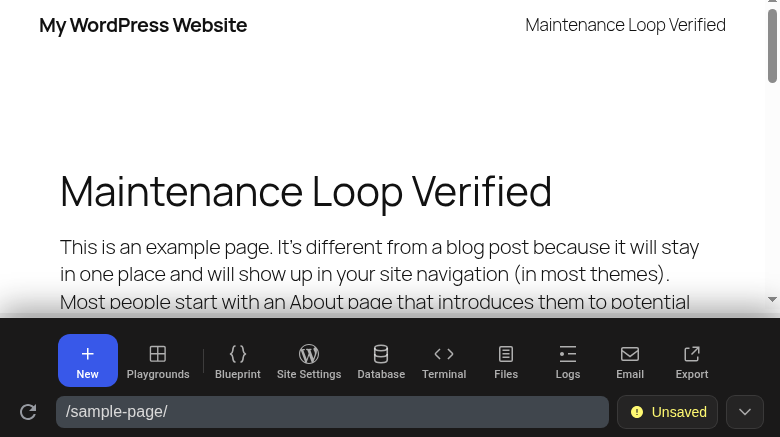
Desktop screenshot of the changed title. The Playground dock remains visible to identify the disposable environment.
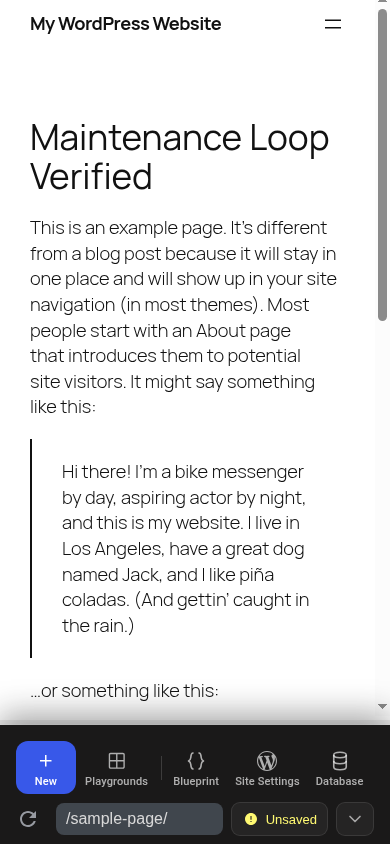
Mobile screenshot of the changed title and original visible body copy. The measured viewport had no horizontal overflow.
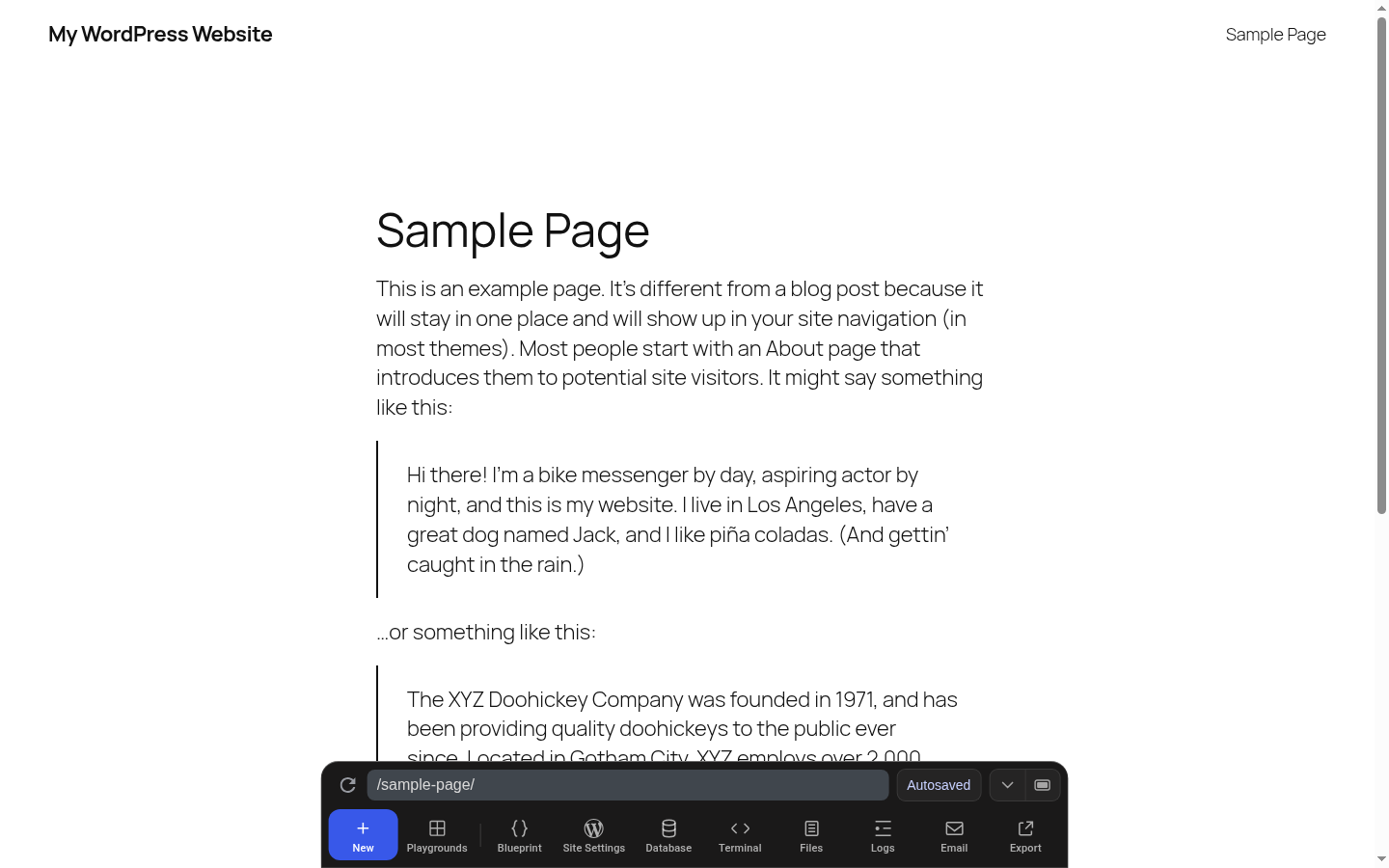
After the ZIP import, the page showed the original title in a new Playground instance.
This test demonstrates the documented loop for one low-risk page-title change in Playground. Export and import used Playground’s native ZIP tools on the same platform. The test does not validate production backup completeness, cross-host portability, restore permissions, production recovery procedures, real-device behavior, malware detection, complete transaction coverage, or a recovery time objective. Playground uses browser-hosted WebAssembly and SQLite rather than a typical PHP and MySQL or MariaDB host.
Sources checked: August 27, 2026. We checked the official WordPress sources linked in this guide on that date.
Decide Who Owns Each Maintenance Task
“Do it yourself” does not mean “do everything yourself.” It means that you know which tasks are safe to own and where your responsibility ends. The assignments below are examples, not WordPress-defined responsibilities.
| Maintenance area | Suggested owner | Evidence of success | Escalate when |
|---|---|---|---|
| Backup schedule and retention | Host, backup service, or site owner | Recent file and database backup exists off-site | No restore path exists or backups fail |
| WordPress Core updates | Site owner, host, or developer | Admin and critical public flows pass after update | Major version jump or compatibility failure |
| Plugin and theme updates | Site owner or developer | Affected features pass on staging and production | Custom code, abandoned plugin, or fatal error is involved |
| Uptime and security alerts | Monitoring or security service | Alerts arrive and named person responds | Malware, unknown administrator, or file changes appear |
| Content, menus, and visible layout | Content owner or site administrator | Correct page works on desktop and mobile | Change requires PHP, theme files, or unsupported builder code |
| Forms, email, checkout, and accounts | Business owner plus technical owner | Approved submission or test-mode transaction reaches the expected system | Payment, customer data, or delivery fails |
| PHP, database, DNS, SSL, and server rules | Host or specialist | Service status and required flows pass | You do not control rollback or understand impact |
The owner can vary. Managed hosting can cover backups, platform updates, and infrastructure. It does not automatically prove that your contact form sends email or that your checkout accepts payment.
Before You Change Production
Use this procedure for WordPress Core, plugin, theme, PHP, configuration, database, or global-template changes.
This is Frontman’s change-control procedure, synthesized from WordPress backup and update guidance. WordPress does not publish this exact workflow for every listed change type.
- Record the current WordPress, PHP, theme, and affected plugin versions.
- Confirm that a current backup contains both files and database.
- Confirm that you can access the restore process without the WordPress admin.
- Use staging when the change can affect many pages, custom code, or revenue.
- Define the pages and user flows that must work after the change.
- Make one related change at a time.
- Clear the affected WordPress, plugin, host, or CDN cache.
- Run the verification checklist before you close the task.
The official WordPress backup documentation explains why files and the database need separate backups. A typical full restore needs both. Keep copies made at about the same time as one backup set.
A completed backup does not prove that you can recover. Record where it is stored, how long it is kept, who owns it, and how to restore it. For a business-critical site, define a restore-test interval from its recovery requirements. Staging, a private test copy of production, is one possible target.
Continuous and Event-Driven Maintenance
Signals We Recommend Monitoring Continuously
- Public-site uptime
- Backup completion and failure
- Security and vulnerability alerts
- Security-update notifications
- Domain and SSL expiration
- Storage limits
- Failed scheduled jobs when they affect publishing, email, orders, or memberships
Assign every alert to a person responsible for classifying the problem and starting recovery.
Review Security Updates When They Appear
Treat each security notice as an event-driven review instead of waiting automatically for a calendar window. Find out how serious the flaw is, which software it affects, and which conditions an attacker needs. Read the vendor instructions and note the update risk.
Set urgency from the affected component, attack conditions, vendor guidance, site exposure, compatibility risk, and available recovery controls. The official WordPress hardening guide says to keep WordPress Core and plugins current. Public attack details make older versions easier to attack. WordPress does not define the response windows used by this checklist.
Our Verification Checks After a Production Change
- Open the affected page while logged out.
- Check desktop and mobile layouts.
- Check navigation to and from the changed page.
- Submit the affected form or complete the affected transaction.
- Confirm email delivery when the flow sends email.
- Check browser-console and server errors when the change affects code.
- Check analytics or tracking when markup or scripts changed.
- Record the change, result, and rollback point.
A successful homepage request verifies only that request. Check every affected business flow separately.
Weekly WordPress Maintenance Checklist
These intervals are editorial starting points. Security notices remain event-driven, and backup frequency should reflect site activity and acceptable data loss.
- Confirm that scheduled backups completed.
- Review uptime, security, and hosting alerts.
- Review available WordPress Core, plugin, and theme updates.
- Test the primary contact, lead, booking, or purchase flow.
- Check that expected email reaches its destination.
- Review failed orders, form errors, or scheduled-task failures.
- Review the current administrator list. If the site, host, or identity provider records account changes, review that audit source for unexpected additions.
- Check important pages after marketing or content work.
High-activity sites need shorter intervals. A daily publisher can lose more data in one day than a brochure site changes in one month. Set backup frequency from your recovery point objective (RPO), the maximum amount of recent data the business can accept losing. WordPress gives daily backups for high-activity sites and weekly backups for smaller sites as examples, not universal minimums.
Monthly WordPress Maintenance Checklist
Monthly work combines non-urgent planned changes with broader verification. Security releases follow the event-driven process above.
Apply Reviewed Updates
Open Dashboard > Updates and inspect pending updates. For Core, use WordPress release documentation or Developer Blog notes. For plugins and themes, use the component’s WordPress.org page or identified vendor release notes.
WordPress documents automatic, one-click, and manual Core update paths plus plugin and theme automatic updates. Automatic updates reduce manual work, but you must still check the site after each update.
For a major WordPress release, use a release-specific compatibility audit instead of this general checklist. Our WordPress 7 breaking-changes audit and WordPress 7.1 upgrade checklist own that narrower workflow.
Review Site Health
Open Tools > Site Health. Use its severity as a first-pass priority: inspect Critical issues, then Recommended improvements, while assessing whether each item applies to the site.
The official Site Health screen documentation explains both tabs. Status sorts results into critical issues, recommended improvements, and passed tests. Info shows details about WordPress, themes, plugins, the server, the database, and file permissions. These tabs report problems but do not repair the site.
Ask your host or developer to handle server modules, file permissions, database settings, loopback failures, and persistent REST API errors. A loopback request is a request that the site sends to itself. The REST API is an interface WordPress uses to exchange data with other software.
Review Public-Site Quality
Before these checks, record the URLs, flows, viewport sizes, test tool, test location, and device or network profile. Reuse that setup for comparisons. Choose URLs from the site’s documented critical journeys rather than an unspecified sample.
- Find broken internal and external links on important pages.
- Review 404 reports for damaged internal paths.
- Check page speed for important templates and user flows.
- Check desktop and mobile layout at common widths.
- Review forms, search, downloads, embeds, and media.
- Update stale business hours, prices, staff, offers, and legal notices.
- Remove spam comments and expired drafts when they create operational noise.
Do not delete database data only because a cleanup tool calls it unused. Identify its owner and dependencies, confirm a usable backup, and define restoration before destructive cleanup.
Review Access and Installed Software
- Remove administrator access that no longer has a business owner.
- If an audit source exists, review unexpected new users and privilege changes.
- Remove plugins and themes that you no longer use.
- Confirm that active plugins still receive updates from WordPress.org or their identified vendor.
- Require unique strong passwords for administrator accounts. Enable multi-factor authentication when the site’s login system supports it.
The official WordPress hardening guide treats security as risk reduction, not risk elimination. It also separates host responsibility from application-owner responsibility. If you find malware or unknown file changes, stop routine maintenance and begin incident response.
Quarterly WordPress Maintenance Checklist
Quarterly checks are our recommendation for recovery and access assumptions that routine operation can hide. Set a different interval when the site’s recovery requirements demand it.
- Restore a recent backup to staging and check the restored site.
- Audit all administrator and service accounts.
- Remove abandoned plugins, themes, integrations, and API credentials.
- Compare PHP and database versions with current WordPress requirements. Compare WordPress, theme, and plugin versions with their maintainers’ support information.
- Run the critical journeys defined before the change, from their recorded starting state through expected completion.
- Review redirects, canonical URLs, indexing controls, and important 404s.
- Compare the same URLs with the same tool, location, viewport, device or network profile, and run-count policy. Record the setup and results.
- Review old content that still receives traffic or drives conversions.
- Confirm who receives uptime, security, domain, SSL, and billing alerts.
A restore test gives more evidence than a green backup status. It can reveal missing uploads. It can also reveal files and database copies saved at different times, missing login details, or a restore that is too slow.
Annual WordPress Maintenance Checklist
- Review hosting plan, capacity, support terms, and backup retention.
- Confirm domain, SSL, plugin, theme, and service renewal ownership.
- Review recovery contacts and account access.
- Remove former staff, contractors, and obsolete integrations.
- Run the full disaster-recovery process on a non-production environment.
- Review privacy, terms, accessibility, and regulated-business requirements with qualified owners.
- Decide whether the current theme, builder, and plugin stack still has active support.
- Record which tasks require a host, developer, security specialist, or agency.
Do not wait for renewal email to discover that a former contractor owns the domain or premium-plugin license.
Adjust the Checklist to Site Risk
The following is Frontman’s illustrative risk model, not a WordPress-defined site classification.
| Site type | Highest-risk flows | Maintenance adjustment |
|---|---|---|
| Brochure site | Contact form, phone links, location details | Focus on uptime, forms, content accuracy, and renewals |
| Lead-generation site | Forms, email delivery, analytics, CRM handoff | Run real submissions and confirm downstream delivery |
| Publisher | Posts, search, feeds, scheduled publishing, ads | Increase backup frequency and test publishing workflows |
| Membership site | Login, account access, permissions, recurring billing | Test logged-in and logged-out states with representative roles |
| WooCommerce store | Cart, checkout, payment, inventory, tax, email | Use staging, test transactions, and stricter change windows |
Use change frequency, custom code, transactions, integrations, and recovery cost as inputs when setting local intervals.
What to Automate and What to Keep Human
Automate repeatable detection and scheduled work:
- Uptime probes
- Scheduled backups
- Backup-failure alerts
- Security and vulnerability alerts
- Domain and certificate reminders
- Broken-link reports
- Update notifications
- Performance measurements on fixed pages
Require explicit approval for higher-impact work such as:
- Major WordPress, PHP, theme, and page-builder upgrades
- Updates that affect checkout, membership, forms, or authentication
- Deleting plugins, themes, users, orders, or content
- Database cleanup and repair
- Changes to DNS, SSL, permalinks, site URLs, or server configuration
- Malware response and recovery
- Acceptance of visible layout and content changes
An HTTP 200 check alone does not verify content accuracy or downstream order processing. Add checks that directly observe those outcomes.
Where Frontman Fits
We built Frontman, so this section is product guidance, not independent tool evaluation.
The Frontman WordPress plugin is production-ready. Keep current backups, review each change, and use staging for higher-risk maintenance.
According to Frontman’s versioned WordPress capability guide, Frontman can help after maintenance identifies one specific content or layout problem. An administrator can inspect and change supported content beside the rendered site.
Supported content includes posts, pages, Gutenberg blocks, menus, block templates, text widgets, Additional CSS, Elementor content, selected settings, and selected WooCommerce data. Check the current WordPress setup and capability guide before relying on a specific tool.
For example, maintenance can find an outdated heading, broken menu label, or incorrect Gutenberg block. Frontman can help locate the supported WordPress object, change it, and show the rendered result for review.
Frontman does not replace:
- Backups or restore testing
- WordPress Core, plugin, or theme updates
- Uptime or vulnerability monitoring
- Malware response
- Hosting, DNS, SSL, PHP, or database administration
- Custom theme or plugin source editing
- Complete rollback across WordPress operations
- Accessibility testing or business-critical transaction testing
Frontman changes WordPress data, then refreshes the site preview. You review the change after WordPress saves it to the database. The preview does not guarantee review before every save. Use staging and current backups for broad or risky changes. This behavior description comes from Frontman’s own source review, not an independent product test.
The Frontman WordPress setup and capability guide documents supported tools, administrator requirements, confirmation behavior, and rollback limits. The Frontman security model explains hosted services and live-site boundaries.
For one focused global-layout task, read How to Edit the Header and Footer in WordPress. That tutorial identifies whether a block theme, classic theme, widget area, Elementor, or custom code controls the visible region.
When to Stop and Get Professional Help
Use these editorial escalation thresholds when the task exceeds your access, recovery capability, or technical scope:
- The site serves malware, redirects visitors, or contains unknown administrator accounts.
- A backup cannot restore the files and database together.
- WordPress shows persistent database, fatal, or filesystem errors.
- The site must cross more than two major WordPress releases; WordPress says to consider an incremental upgrade in that case.
- The failure involves custom theme or plugin code.
- The change requires DNS, SSL, server rules, or database administration.
- Checkout, payment, customer data, inventory, or transactional email is affected.
- You cannot define or run a safe rollback.
- The possible outage costs more than qualified help.
An agency is one way to get that help. A managed host, specialist, plugin vendor, security provider, or independent developer can own a narrower task. Choose the owner based on the system that failed.
Keep a Maintenance Evidence Log
A maintenance log records task ownership, rollback points, verification steps, and outcomes.
| Date | Trigger | Owner | Change | Backup or rollback point | Verification | Result |
|---|---|---|---|---|---|---|
| 2026-08-27 | Placeholder title found | Site administrator | Changed one page title in Playground | Pre-change Playground ZIP | Logged-out desktop, 390 × 844 mobile, restored visible title/body | Passed, then restored |
Record failed verification too. Record recovery as the task result and explain why it was needed. Do not label the original change successful when its acceptance checks failed.
Start With a Low-Risk Maintenance Task
Start with one visible, reversible task on staging. Update old page copy, correct a menu label, or replace one supported block. Then check the page while logged out. Check desktop and mobile widths. Run the affected user flow.
If you want Frontman to help with that content or presentation change, install it with the WordPress integration guide. Keep backups, infrastructure, security, and recovery in the systems that own them.